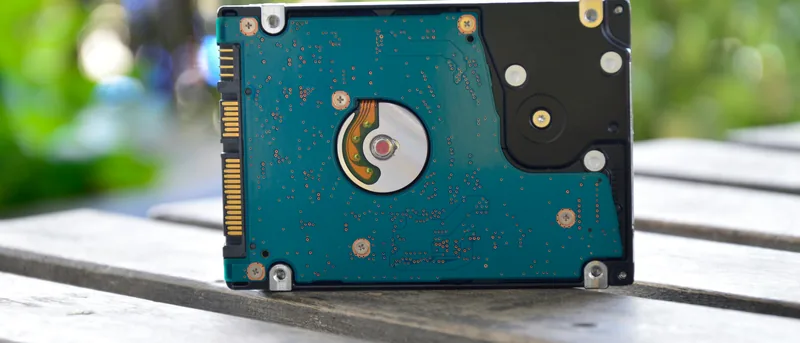
Choosing between an SSD (Solid State Drive) and an HDD (Hard Disk Drive) affects how quickly your Windows PC starts, opens applications, transfers files, and handles everyday tasks. Both types of storage can hold Windows, documents, photos, videos, and games, but they use very different technology.
An SSD is usually the best choice for speed, while an HDD remains useful when you need a large amount of storage at a lower price. The right option depends on your budget, storage needs, and how you use your computer.
How SSDs and HDDs Work
An HDD stores data on spinning magnetic disks. A small mechanical arm moves across those disks to read and write information. Because the drive contains moving parts, it takes time to find and load data.
An SSD stores data on flash memory chips and has no moving parts. This allows it to access files much faster and makes it more resistant to vibration and accidental movement.
Speed and Everyday Performance
Speed is the biggest difference between an SSD and an HDD. A Windows PC with an SSD usually starts in seconds, while a computer using an older HDD may take much longer.
An SSD also improves:
- Application launch times.
- File copying and installation speeds.
- Game loading times.
- Windows updates.
- General system responsiveness.
Replacing an HDD with an SSD can make an older computer feel noticeably faster even when the processor and RAM remain unchanged.
Storage Capacity and Price
HDDs generally offer more storage for less money. They are still a practical choice for large photo collections, video libraries, backups, and files that do not need to load quickly.
SSDs cost more per gigabyte, although prices have become much more affordable. For most everyday users, a 500 GB or 1 TB SSD provides enough space for Windows, applications, and personal files.
Reliability and Durability
Because SSDs have no moving parts, they are better suited to laptops and portable computers. They are less likely to be damaged by bumps or vibration during normal use.
HDDs can remain reliable for many years, but their mechanical parts can wear out or become damaged. Neither drive type should be treated as a backup, so important files should always be stored in another location as well.
Noise, Heat, and Power Use
An HDD may produce a quiet spinning or clicking sound while operating. An SSD is silent. SSDs also use less power and produce less heat, which can improve laptop battery life and reduce fan activity.
SATA SSD vs NVMe SSD
Not all SSDs offer the same performance. SATA SSDs are much faster than HDDs and work with many older computers. NVMe SSDs connect through a faster interface and can provide even better performance.
For normal browsing, office work, and media use, both types feel fast. NVMe drives are more useful for large file transfers, professional editing, and demanding workloads.
Which One Should You Choose?
Choose an SSD if you want faster startup, smoother performance, lower power use, and quieter operation. It is the best primary drive for most Windows computers.
Choose an HDD if you need several terabytes of inexpensive storage for backups, videos, or archives. Many desktop users combine both: an SSD for Windows and applications, plus an HDD for large files.
What to Check Before Upgrading
Before buying a new drive, confirm which connection your computer supports. Older systems may accept only a 2.5-inch SATA drive, while newer systems may support an M.2 NVMe SSD.
Also check the physical size, available slots, and storage capacity you need. Back up your files before replacing or cloning any drive.
Conclusion
For most Windows users, an SSD is the better choice because it improves nearly every everyday task. Windows starts faster, applications respond more quickly, and the computer feels smoother overall.
HDDs are still valuable for affordable high-capacity storage. The best setup for many users is an SSD as the main drive and an HDD for backups or large media files.