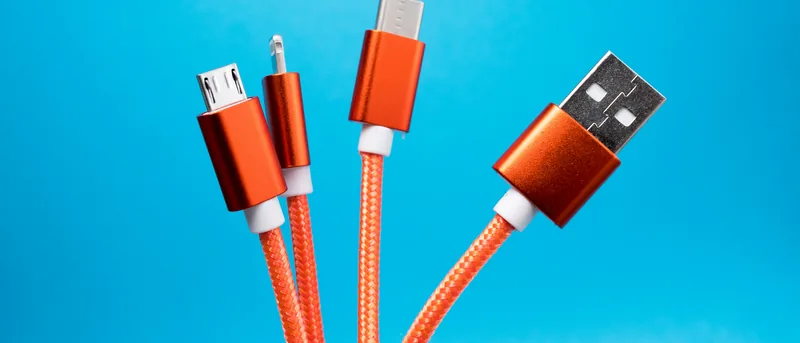
USB connects many of the devices used with a Windows PC, including keyboards, mice, flash drives, phones, printers, cameras, monitors, and external storage. The names USB 2.0, USB 3.0, and USB-C are often used together, but they do not describe the same thing.
USB 2.0 and USB 3.0 mainly refer to data-transfer standards. USB-C refers to the physical connector shape. Understanding this difference helps you choose the correct cable, port, and accessory without expecting performance that the hardware cannot provide.
What is USB 2.0?
USB 2.0 is an older standard with a maximum theoretical speed of 480 Mbps. Real-world speeds are lower, but it remains sufficient for many basic devices.
USB 2.0 is commonly used for:
- Keyboards and mice.
- Printers.
- Basic webcams.
- Game controllers.
- Low-speed flash drives.
It is not ideal for transferring large backups, videos, or other large files because faster standards can complete those tasks much sooner.
What is USB 3.0?
USB 3.0 increased the maximum theoretical speed to 5 Gbps. This makes it far more suitable for external hard drives, SSDs, high-speed flash drives, and devices that transfer large amounts of data.
USB 3.0 ports are sometimes identified by a blue insert or an “SS” symbol, meaning SuperSpeed. However, color alone is not always reliable, so checking the device specifications is safer.
Later versions of USB 3 introduced even faster speeds, but product labels can be confusing because the naming has changed over time.
What is USB-C?
USB-C is a small, reversible connector that can be inserted either way. Unlike USB 2.0 or USB 3.0, USB-C does not automatically tell you the speed or features supported by the port.
A USB-C connection may support:
- USB 2.0 speeds.
- Faster USB 3.x speeds.
- USB4.
- Laptop or phone charging.
- Video output through DisplayPort.
- Thunderbolt on compatible devices.
Two USB-C ports can look identical while offering very different capabilities.
Connector Shape vs USB Speed
This is the most important distinction. A familiar rectangular USB-A port can support either USB 2.0 or USB 3.x. A USB-C port can also support different USB standards.
Therefore, USB-C does not always mean faster. The speed depends on the port, cable, and connected device. The entire connection operates according to the slowest component.
Charging Differences
USB-C is widely used for charging phones, tablets, and laptops, but not every USB-C cable supports the same power level. Some cables are designed mainly for basic charging, while others support higher wattage through USB Power Delivery.
Using an unsuitable cable may result in slow charging or prevent a laptop from charging correctly. Always check the required wattage and cable rating.
Video and Monitor Support
Some USB-C ports can connect directly to a monitor using DisplayPort Alternate Mode. Others provide data and charging only.
A USB-C symbol beside the port may indicate supported features, but the computer's documentation provides the most reliable information.
Which Connection Should You Use?
Use USB 2.0 for low-speed accessories such as keyboards, mice, and printers. Use USB 3.0 or faster for external storage and large file transfers.
USB-C is convenient for modern laptops, phones, docking stations, and displays, but verify its supported speed, charging power, and video features before purchasing accessories.
How to Avoid Buying the Wrong Cable
Check the specifications for all three parts of the connection:
- The Windows PC's port.
- The USB cable.
- The connected device.
A fast device connected through a slow cable will not reach its full performance. Product descriptions should clearly state supported data speed and charging capability.
Conclusion
USB 2.0, USB 3.0, and USB-C serve different purposes. USB 2.0 is sufficient for basic accessories, while USB 3.0 offers much faster data transfer for storage devices.
USB-C is a connector type that may support several speeds and features. Checking the exact specifications of the port and cable is the best way to avoid compatibility problems and get the performance you expect.